Add dynamic text
|
|
Dynamic text allows you to insert predefined scripts in the text components of items (if the item template is configured to allow it). When an item contains dynamic text, the content changes dynamically during exam delivery based on the script. For example, you might have dynamic content in question stems or response options, or on display screens such as exam intros.
Scripts are grouped into the following categories: Assessment, Section, Item, Candidate, Date, and Buttons. For specific details on each scripting option, you can refer to the Scripting section in the Pearson QTI User's Guide.
 Dynamic text is not the same as variables. The content of dynamic text is presented during exam delivery based on predefined scripts, while variables are chosen for randomized display based on a set of approved values that are configured in ExamDeveloper.
Add dynamic text
- Place your mouse cursor in the desired location of a text field (such as the Stem, Response, or Passage).
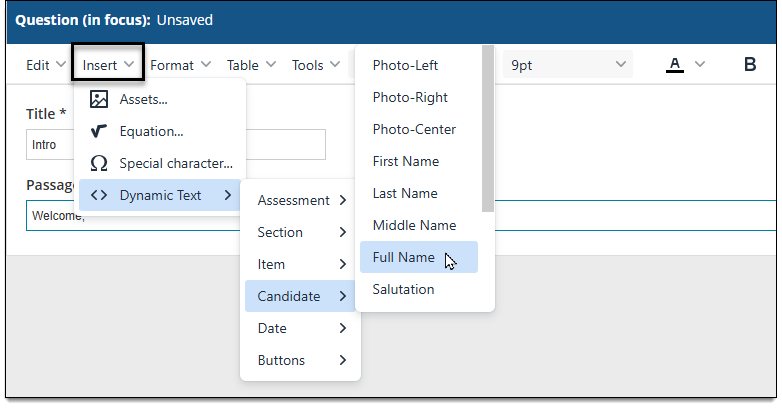
- In the editing toolbar, click Insert > hover over Dynamic text to display categories > hover over the desired category > select the desired option. (For specific details on each option, you can refer to the Scripting section in the Pearson QTI User's Guide.)
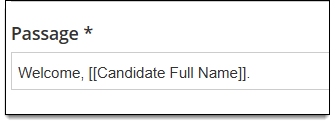
- The dynamic text placeholder is added to the item content contained within double square brackets [[ ]].
Delete dynamic text
- Place your mouse cursor at the end of the dynamic text placeholder inside the text field.
- Press the Backspace or Delete button on your keyboard and delete all of the text, including the square brackets [[ ]].